How to Dynamically Generate QR Codes in Google Slides with DeckServe
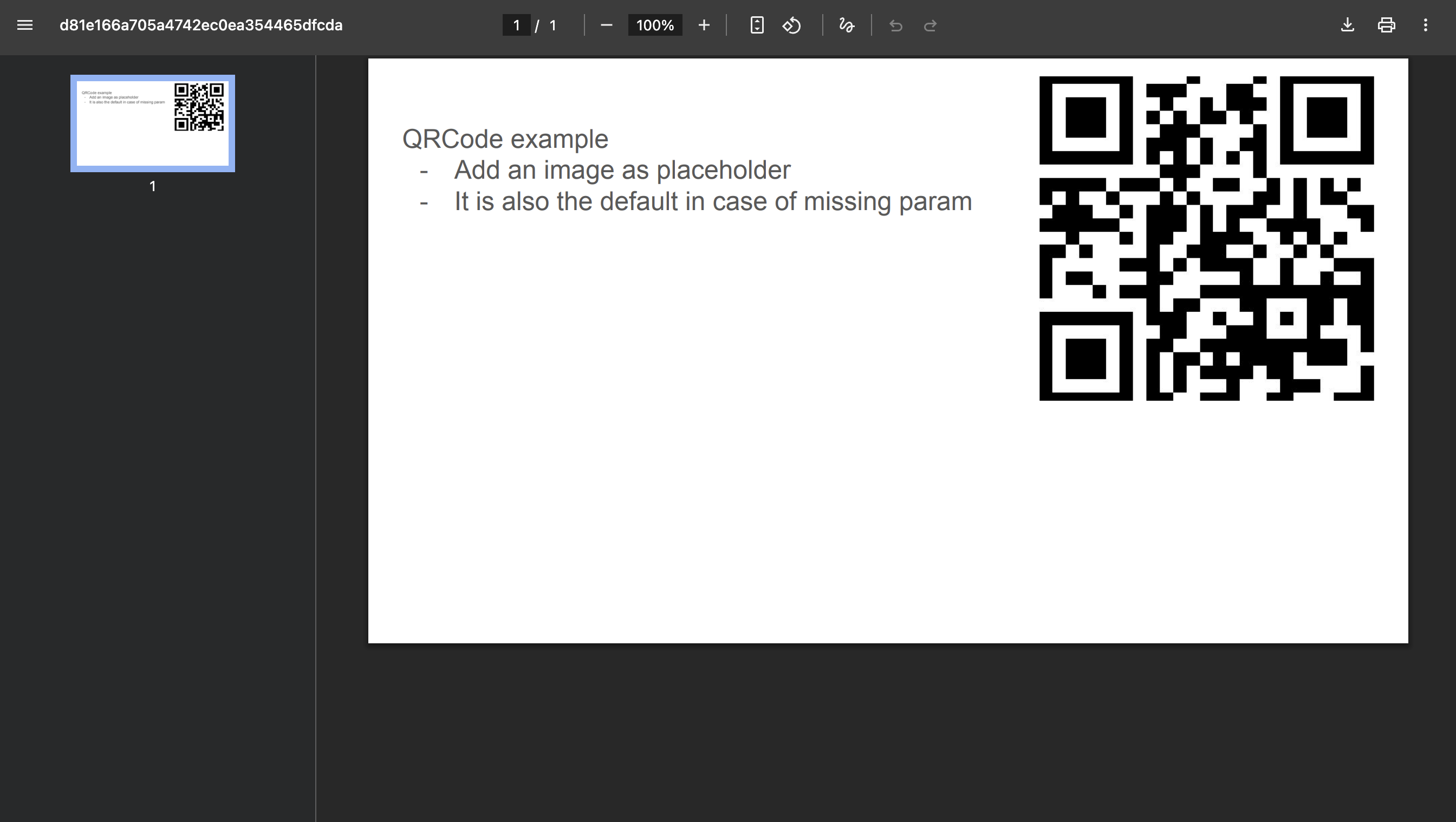
In this tutorial, we’ll explore how to use DeckServe’s built-in feature for generating QR codes dynamically and rendering them directly inside a Google Slides template. This approach is simple to set up, requires minimal effort, and lets DeckServe handle all the QR code creation automatically—while respecting the exact dimensions of your placeholder image in the template.
Contents
- Why Use Dynamic QR Codes in DeckServe?
- What You Will Create
- Step 1. Prepare Your Google Slides Template
- Step 2. Add a QR Code Placeholder
- Step 3. Add the Merge Tag in Alt Text
- Step 4. Load the Template into DeckServe
- Step 5. Test and Generate the QR Code
- Conclusion
Why Use Dynamic QR Codes in DeckServe?
Dynamic QR code generation allows you to create fully personalized content in your presentations—ideal for events, personalized offers, or unique resource links. With DeckServe’s integration:
- No need to manually create or upload QR codes
- Automatic rendering at the correct size and position
- Customizable placeholders with fallback images
- Payload-driven content that can change per API call
This gives you both speed and flexibility without compromising design consistency.
What You Will Create
By the end of this tutorial, you’ll have:
- A Google Slides template with a dedicated QR code placeholder
- A special merge tag in the placeholder’s alt text that DeckServe recognizes
- An automated workflow where DeckServe replaces the placeholder with a QR code containing any value you pass via its API
Step 1. Prepare Your Google Slides Template
Start with a Google Slides presentation that will serve as your template. This can contain any number of slides, but make sure to include the layout where you want the QR code to appear.
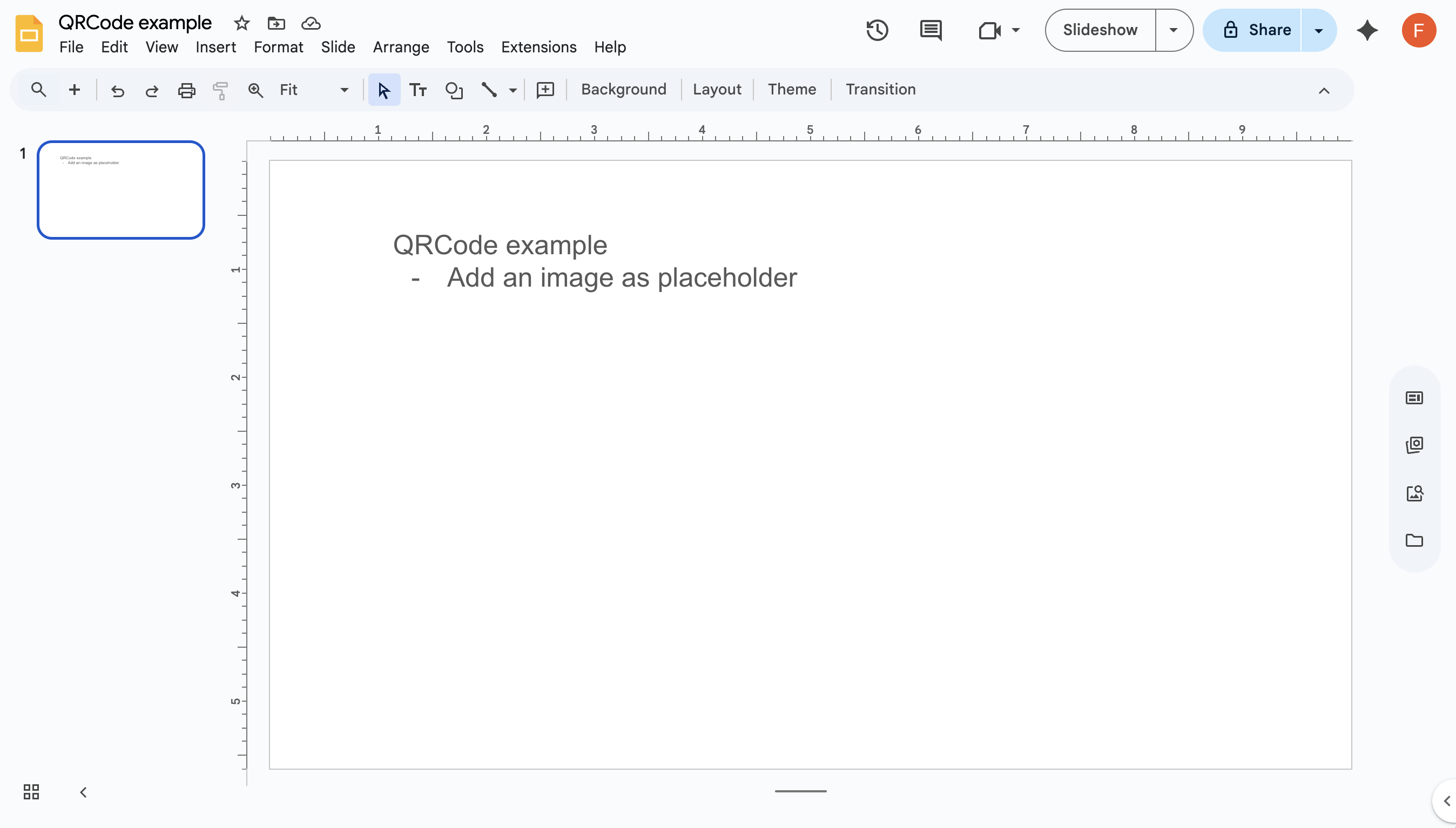
For example, you might have a slide with a title and a placeholder area for the QR code.
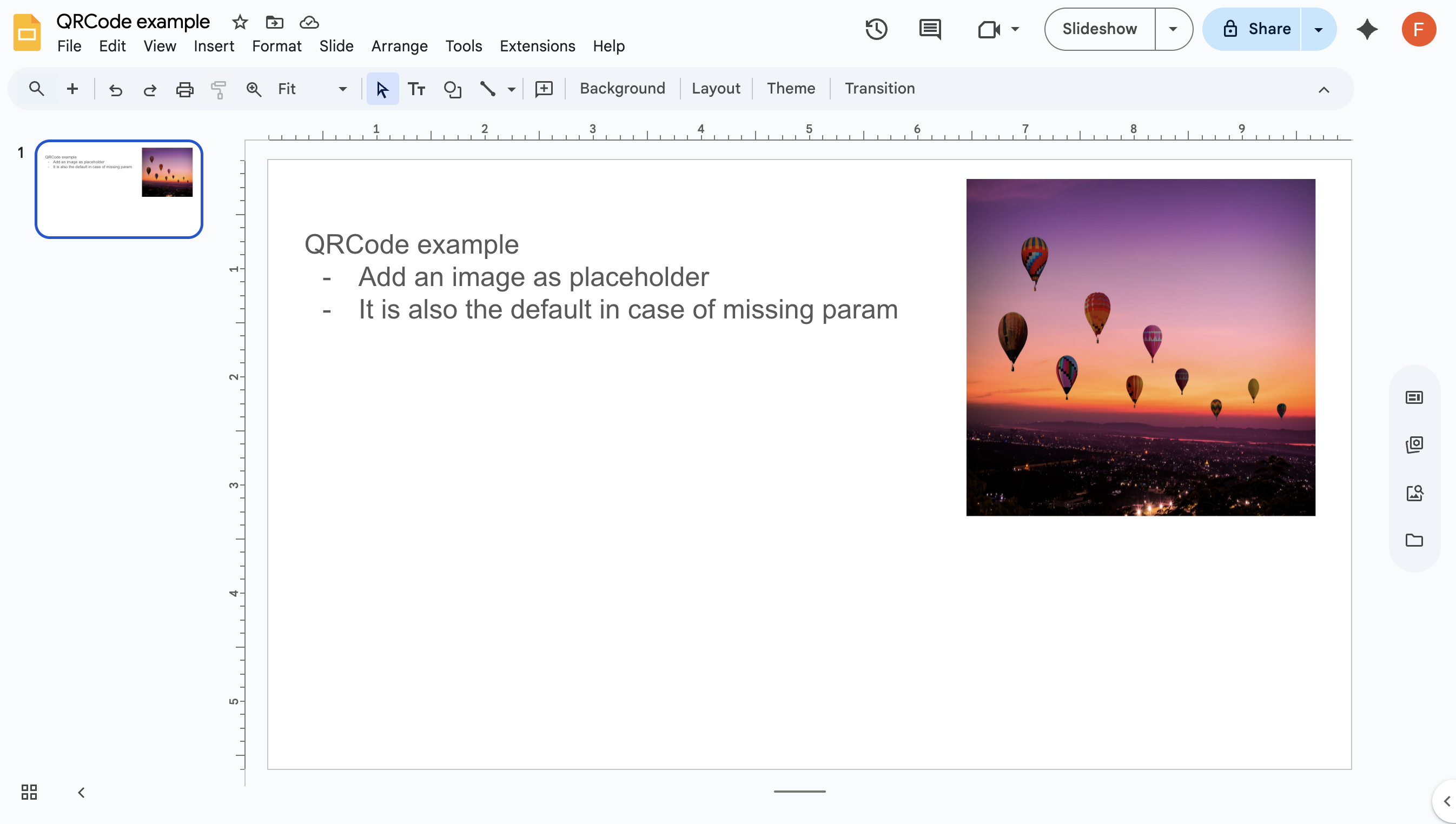
Step 2. Add a QR Code Placeholder
Insert an image placeholder where the QR code should appear. You can:
- Upload an image from your computer
- Use Google’s built-in stock image library
- Insert an image via URL
Any image will do, since it will be replaced automatically—think of it as a “stand-in” for your QR code. This placeholder also serves as a fallback image in case a QR code is not provided.
Step 3. Add the Merge Tag in Alt Text
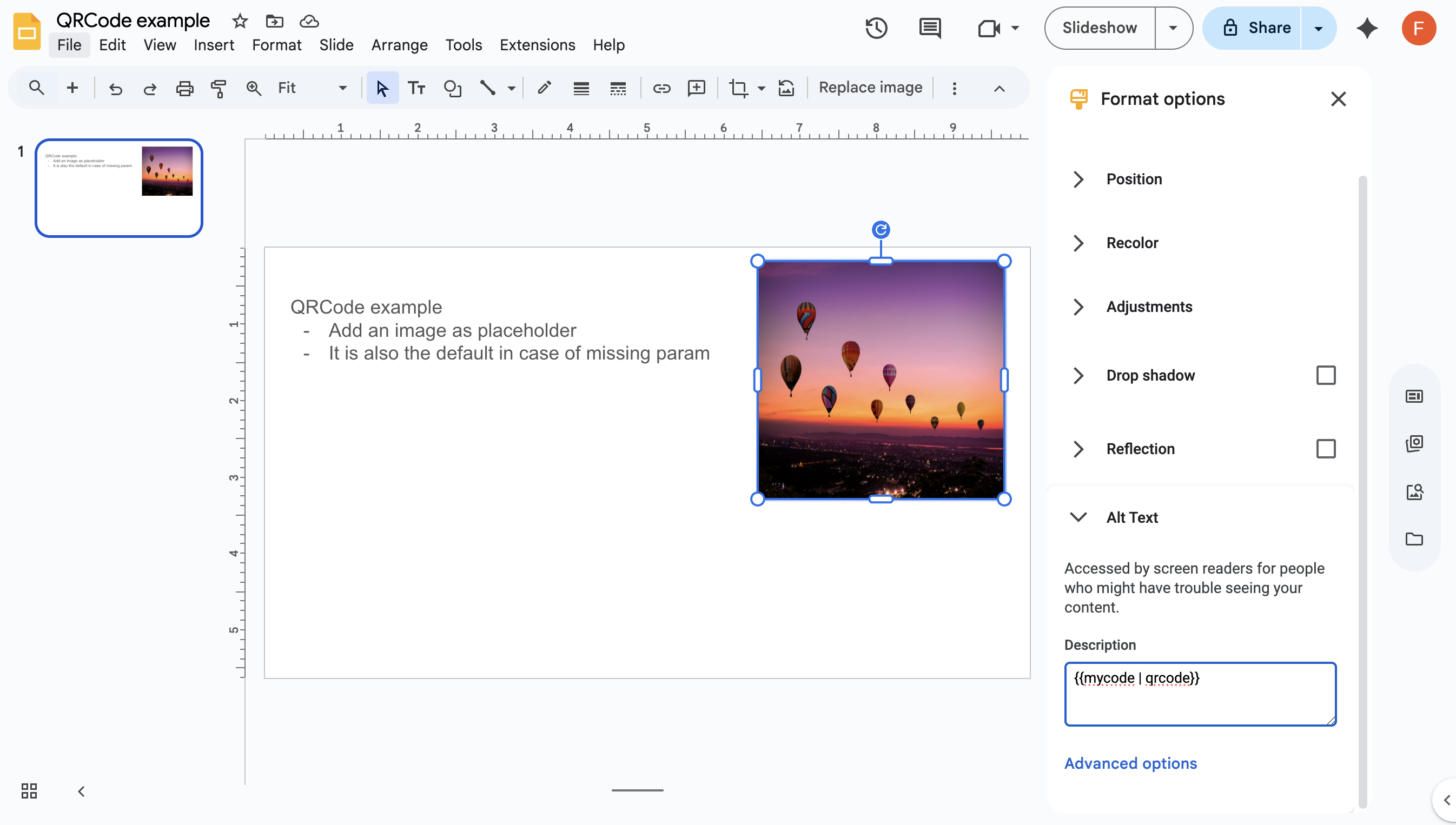
DeckServe detects QR code placeholders by reading the alt text of the image. Here’s how to set it up:
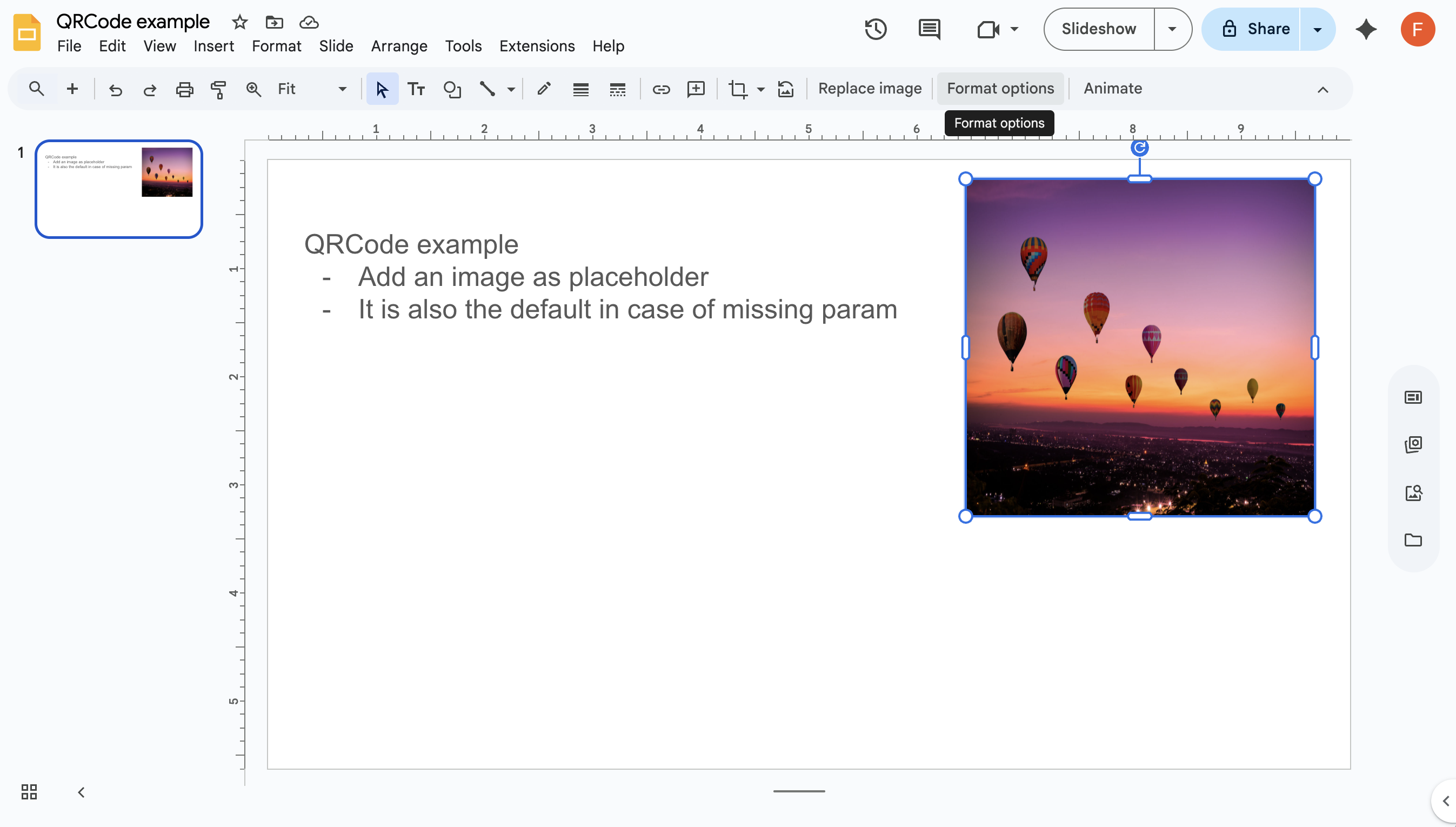
- Select your placeholder image.
- Open the Format Options panel.
- Locate the Alt text section.
- Replace any existing description with your merge tag in the format:
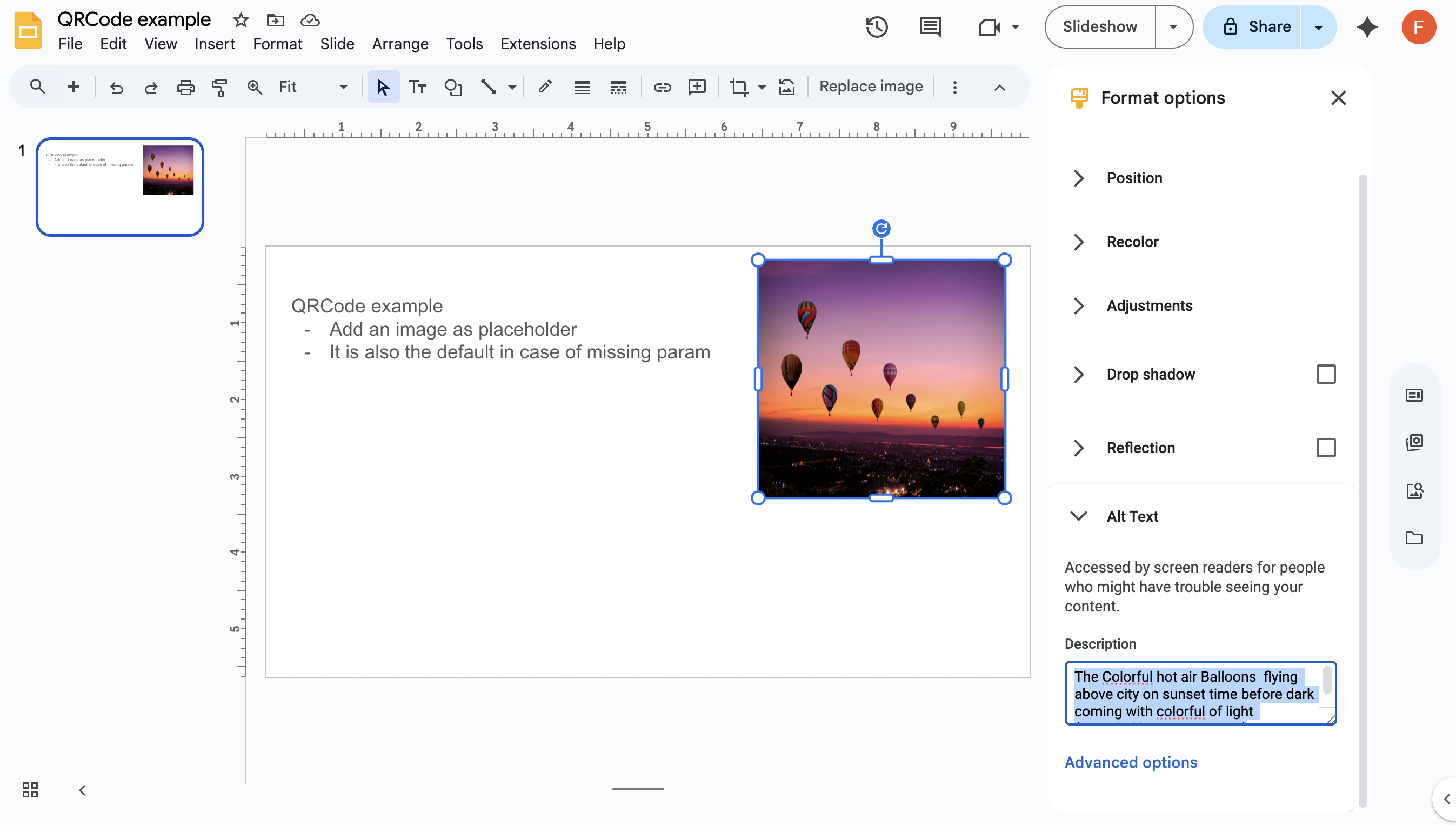
{{mycode | qrcode}}mycodeis the name of the parameter you will pass in the API payload.qrcodeis the keyword that tells DeckServe to render this as a QR code.
Step 4. Load the Template into DeckServe
Once your template is ready:
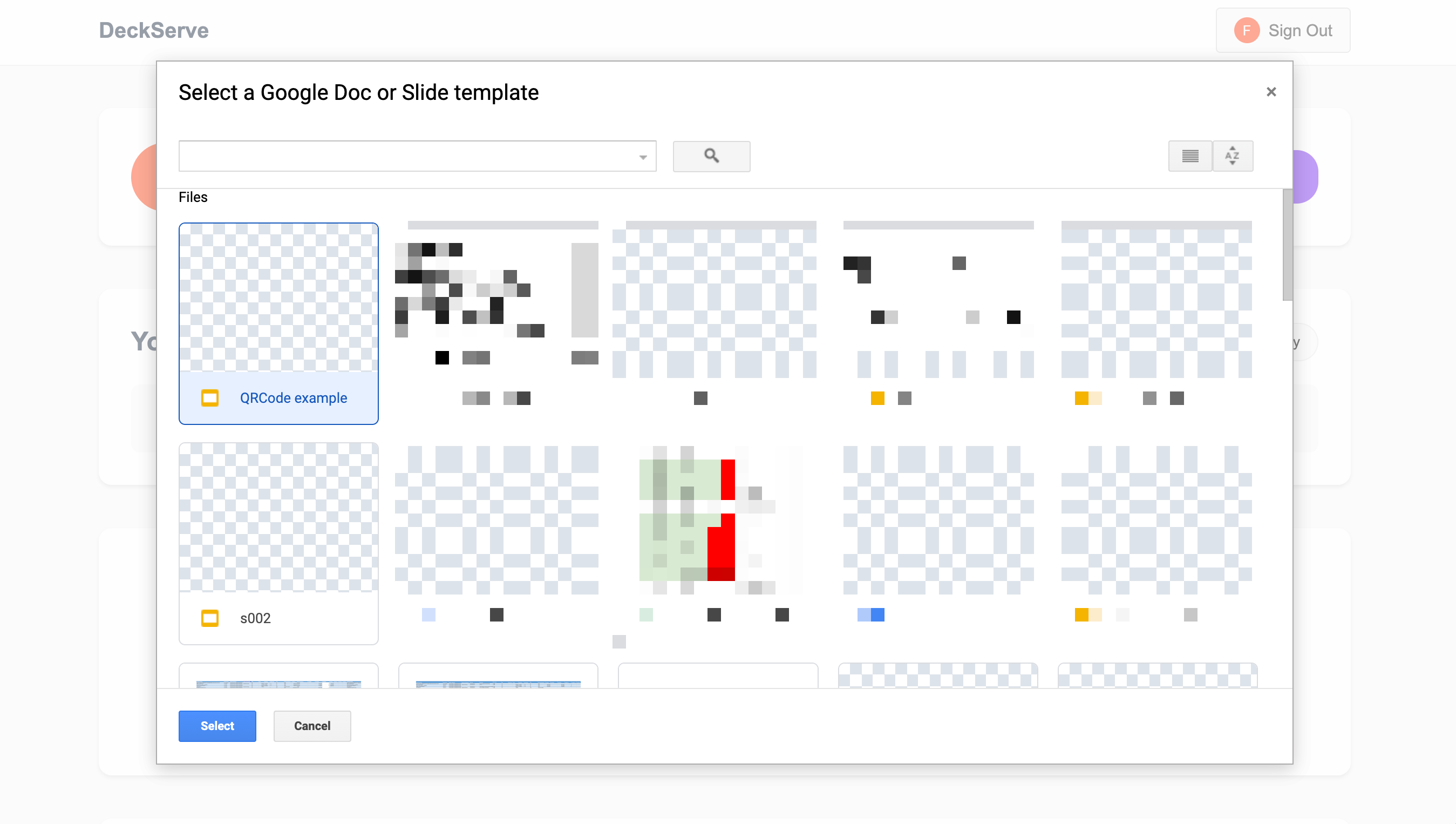
- In DeckServe, open the Google Drive picker.
- Select the prepared Google Slides document.
- DeckServe will detect your merge tag and automatically add a parameter field for it in the template tester.
Step 5. Test and Generate the QR Code
With the template loaded:
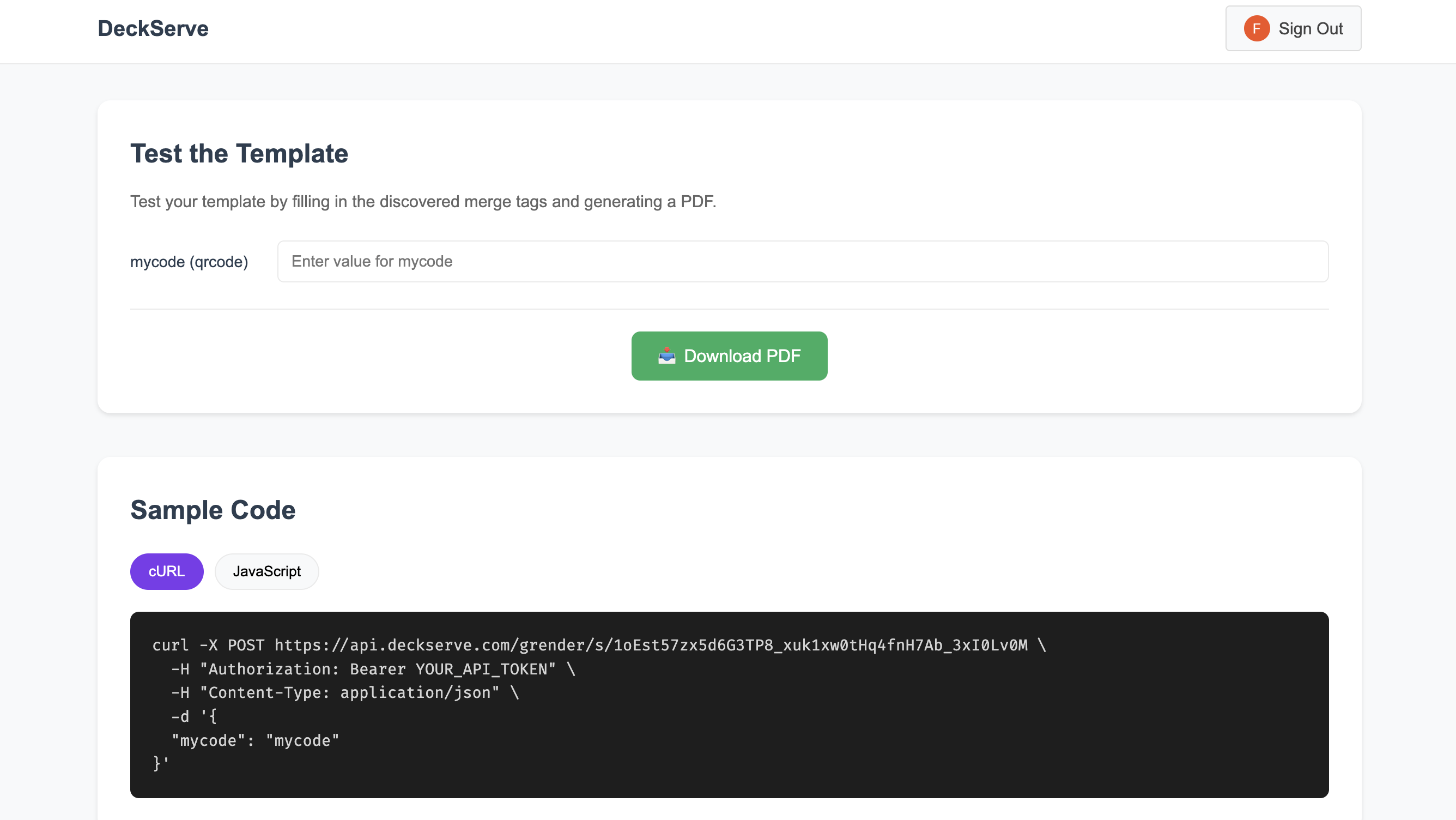
- In DeckServe’s template tester, locate the parameter (e.g.,
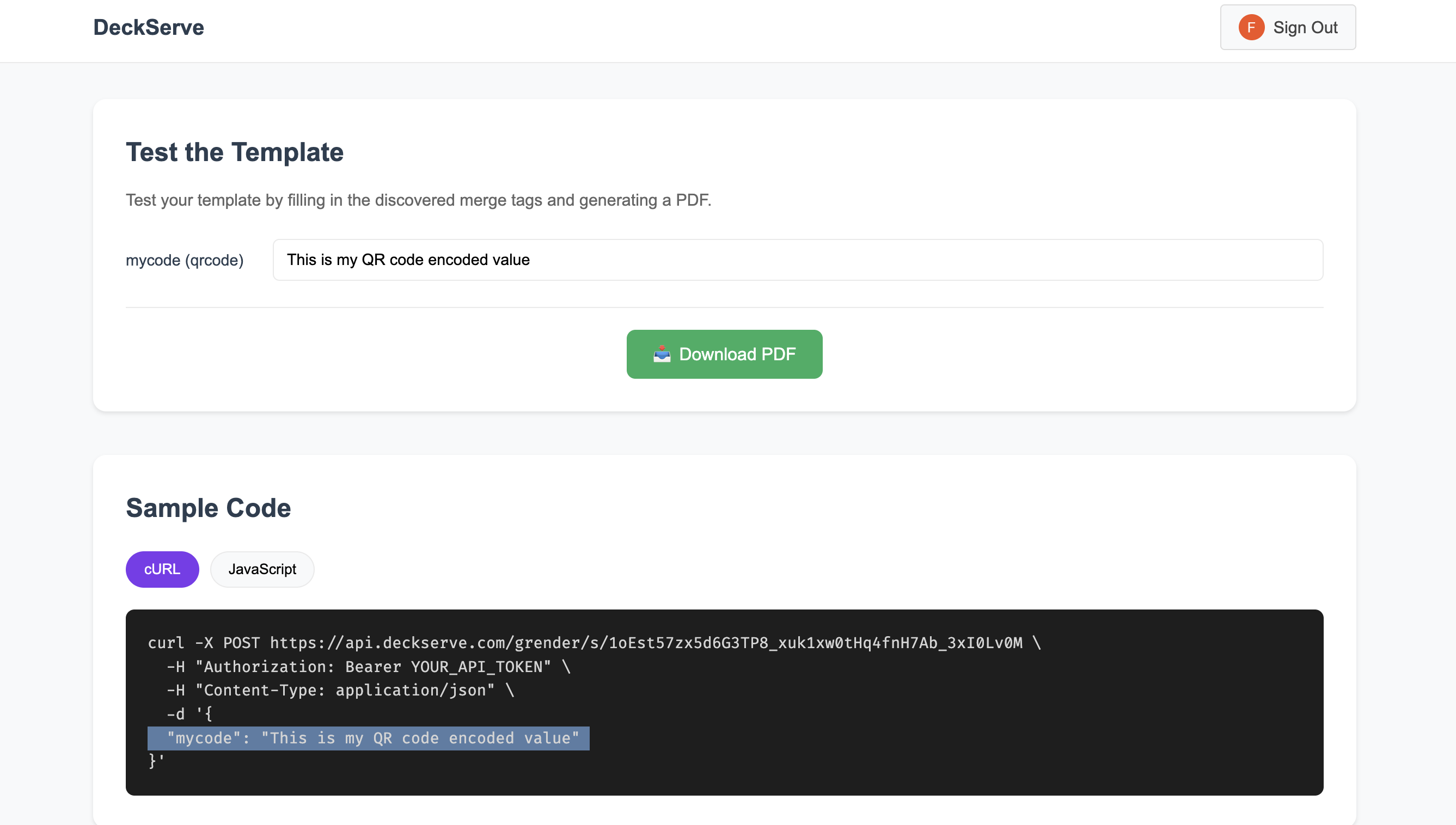
my_code). - Enter the value you want encoded in the QR code—this can be a URL, text, or any data string.
- View the generated API payload in the tester.
- Click Download PDF (or your preferred output format).
- DeckServe will replace the placeholder with a QR code containing your value.
Conclusion
With just a placeholder image and a merge tag in your Google Slides template, DeckServe can dynamically generate and embed QR codes on the fly. This approach:
- Maintains perfect alignment and sizing
- Offers a fallback image if no QR code is provided
- Requires minimal setup—no external QR code creation tools needed
Next time you need personalized, on-demand QR codes in your presentations, you can have them ready in minutes with DeckServe.